前请提要:
本文分为三部分:壁纸美化,图标美化,终端美化
壁纸美化:直接下载steam中的Wallpaper
图标美化:直接在steam中的MyDockFinder
终端美化:
1. 修改终端背景
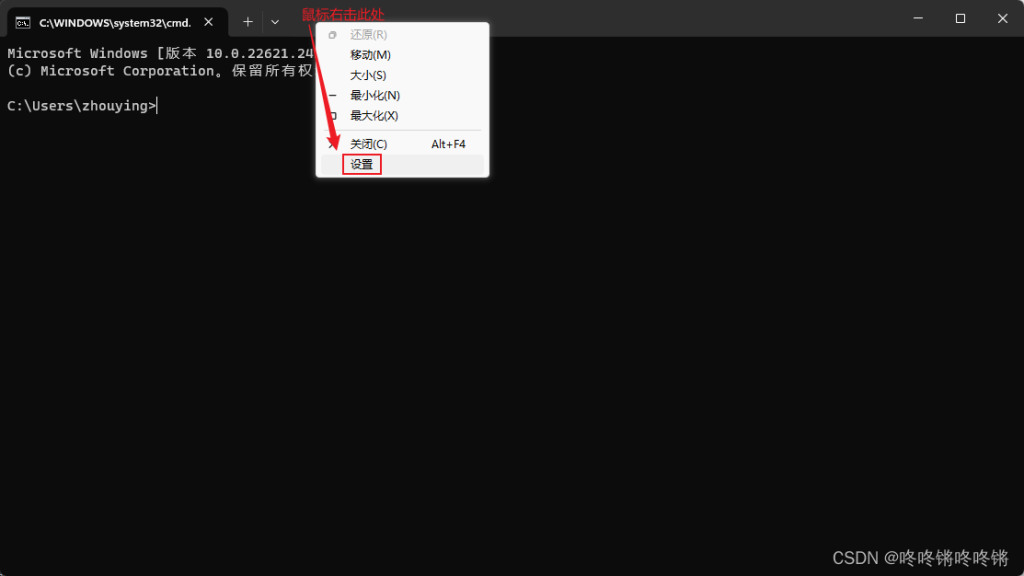
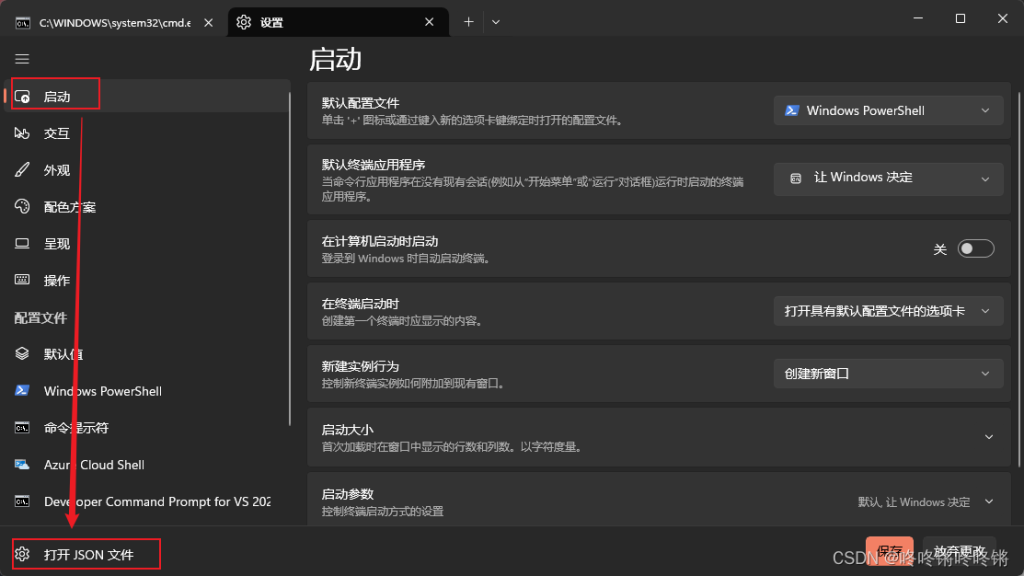
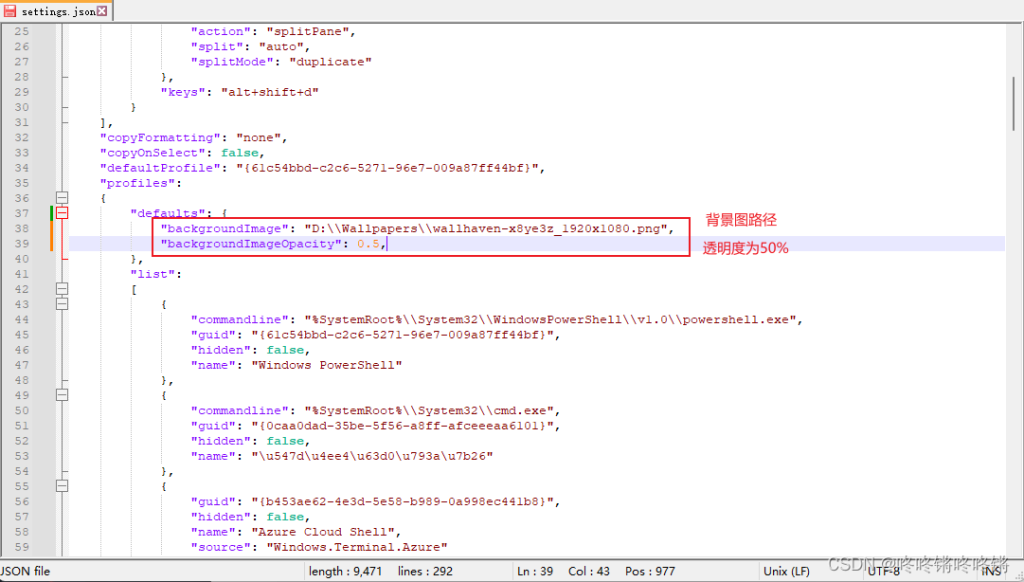
"backgroundImage": "你自己设置的背景图片的路径",
"backgroundImageOpacity": 0.5,
2.1 安装 oh-my-posh
Windows PowerShell 执行策略
在执行 winget install 命令之前,先查看下,Windows PowerShell 的执行策略
执行策略 是 Windows PowerShell安全策略中的一部分,它将决定你是否可以载入配置文件(包括你的 Windows PowerShell profile文件)和运行脚本,它将会在运行前确定哪些文件必须具有数字签名(digitally signed)
get-ExecutionPolicy 获取 Windows PowerShell 当前执行策略
set-ExecutionPolicy 修改 Windows PowerShell 中执行策略的用户首选项(preference)
执行策略状态说明
- Restricted 表示状态是禁止的 不载入配置文件, 不执行脚本. Restricted 是默认值.
- RemoteSigned 所有从互联网上下载的脚本必须通过信任的出版商签名(trusted publisher)
- AllSigned 所有的配置文件和脚本必须通过信任的出版商签名(trusted publisher),这里所指的脚本页包括在本地计算机上创建的脚本
- Unrestricted 载入所有的配置文件和脚本,如果运行了一个从互联网上下载且没有数字签名的脚本,在执行前都会被提示是否执行
执行策略状态:Restricted/RemoteSigned/AllSigned/Unrestricted

获取 Windows PowerShell 当前执行策略
get-ExecutionPolicy

修改 Windows PowerShell 中执行策略
set-ExecutionPolicy RemoteSigned
winget 执行命令安装 oh-my-posh
winget 安装不上的,可以设置下 国内镜像-中科镜像
winget 安装不上的,可以设置下 国内镜像-中科镜像
winget source list
winget source remove msstore
winget source remove winget
winget source add winget https://mirrors.ustc.edu.cn/winget-source

oh-my-posh 安装命令
winget install JanDeDobbeleer.OhMyPosh -s winget --location D:\OhMyPosh

oh-my-posh 更新命令
winget upgrade JanDeDobbeleer.OhMyPosh -s winget --location D:\OhMyPosh
— location D:\OhMyPosh 是将 oh-my-posh 安装到 D:\OhMyPosh 目录下
2.2 安装Clink
下载Clink:Overview | Clink
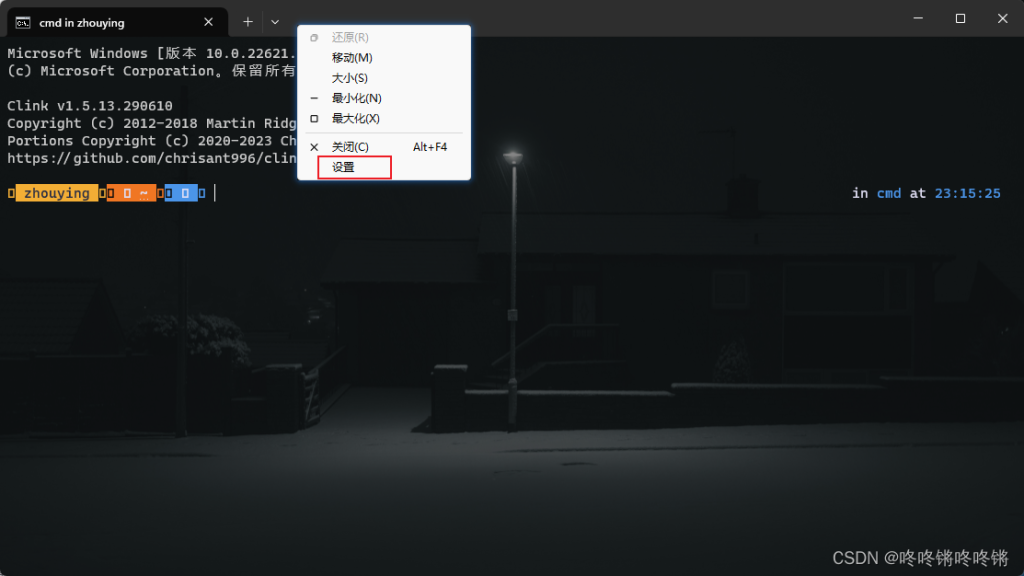
确认Clink是否安装成功,重新打开终端(Clink的智能补全代码,确认是按电脑的->右键)。
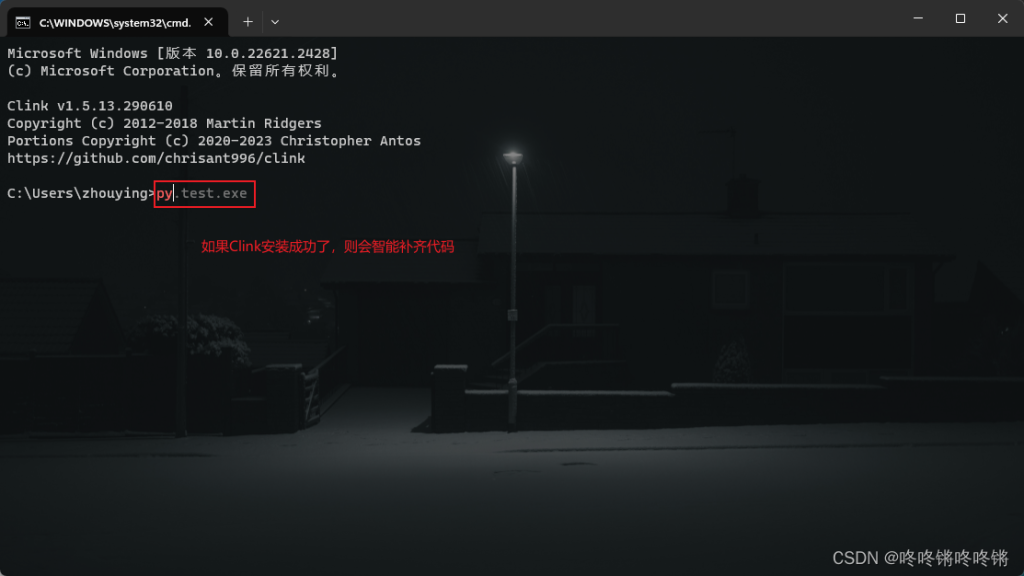
2.3 Clink配置oh-my-posh
将oh-my-posh配置到Clink中
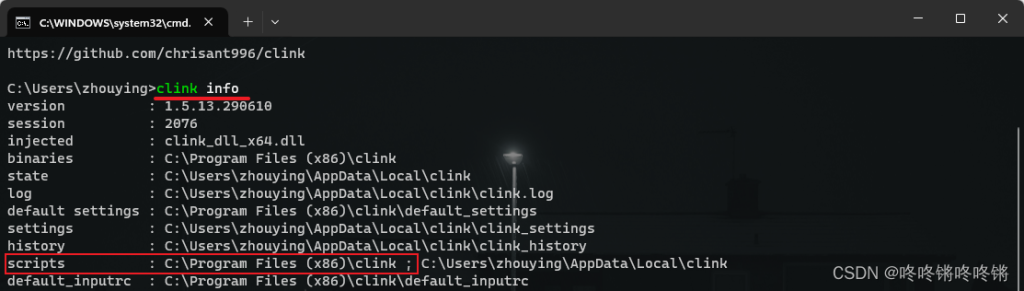
在该路径C:\Program Files (x86)\clink下创建一个文件oh-my-posh.lua(可以先创建个txt文件写入完毕后再修改后缀)
load(io.popen(‘oh-my-posh init cmd –config C:/ProgramData/oh-my-posh/themes/wholespace.omp.json’):read(“*a”))()
重新打开终端
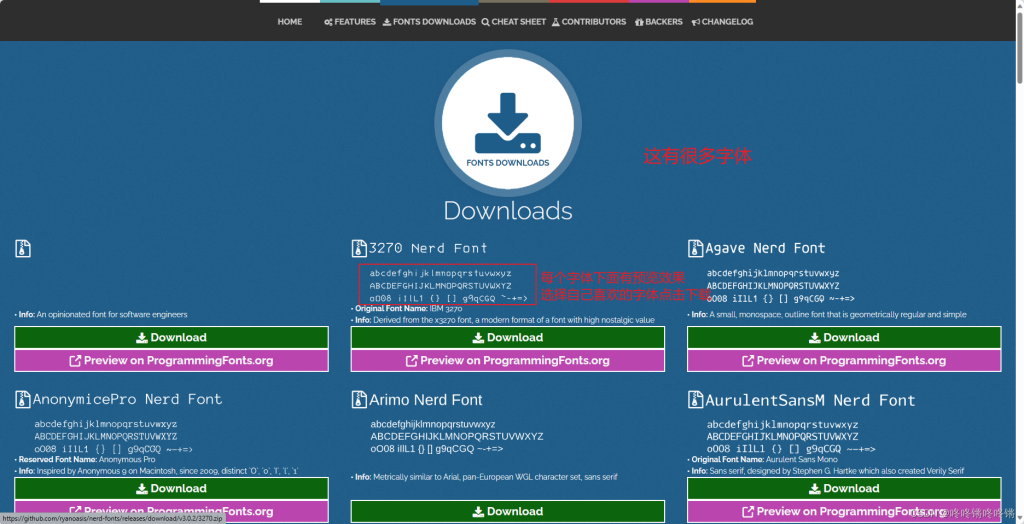
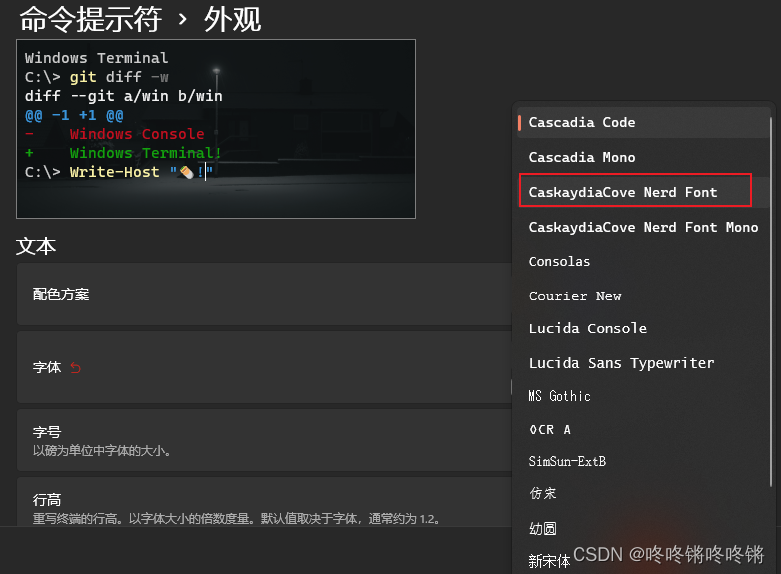
2.4 下载和配置Nerd字体
Nerd Fonts – Iconic font aggregator, glyphs/icons collection, & fonts patcher